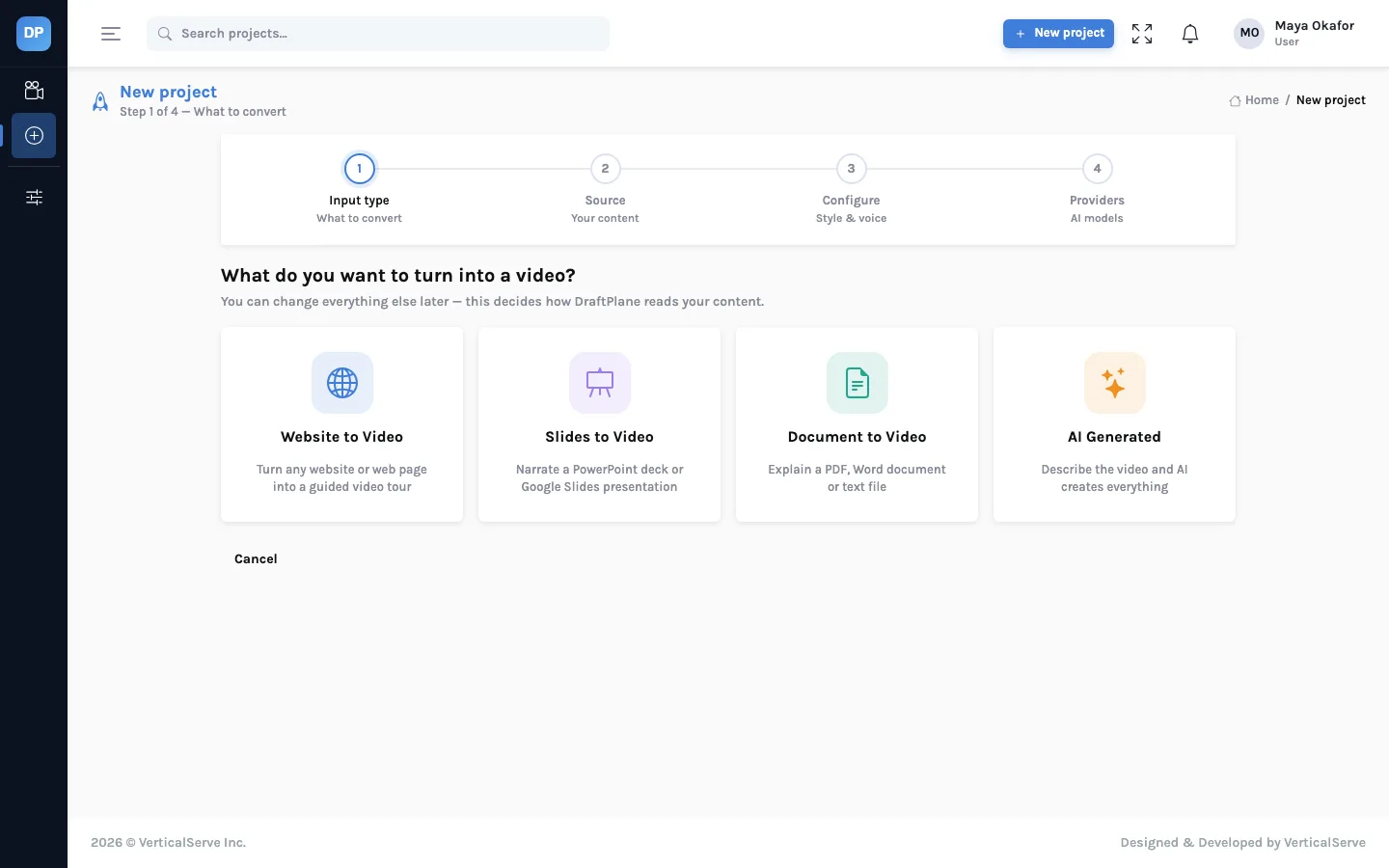
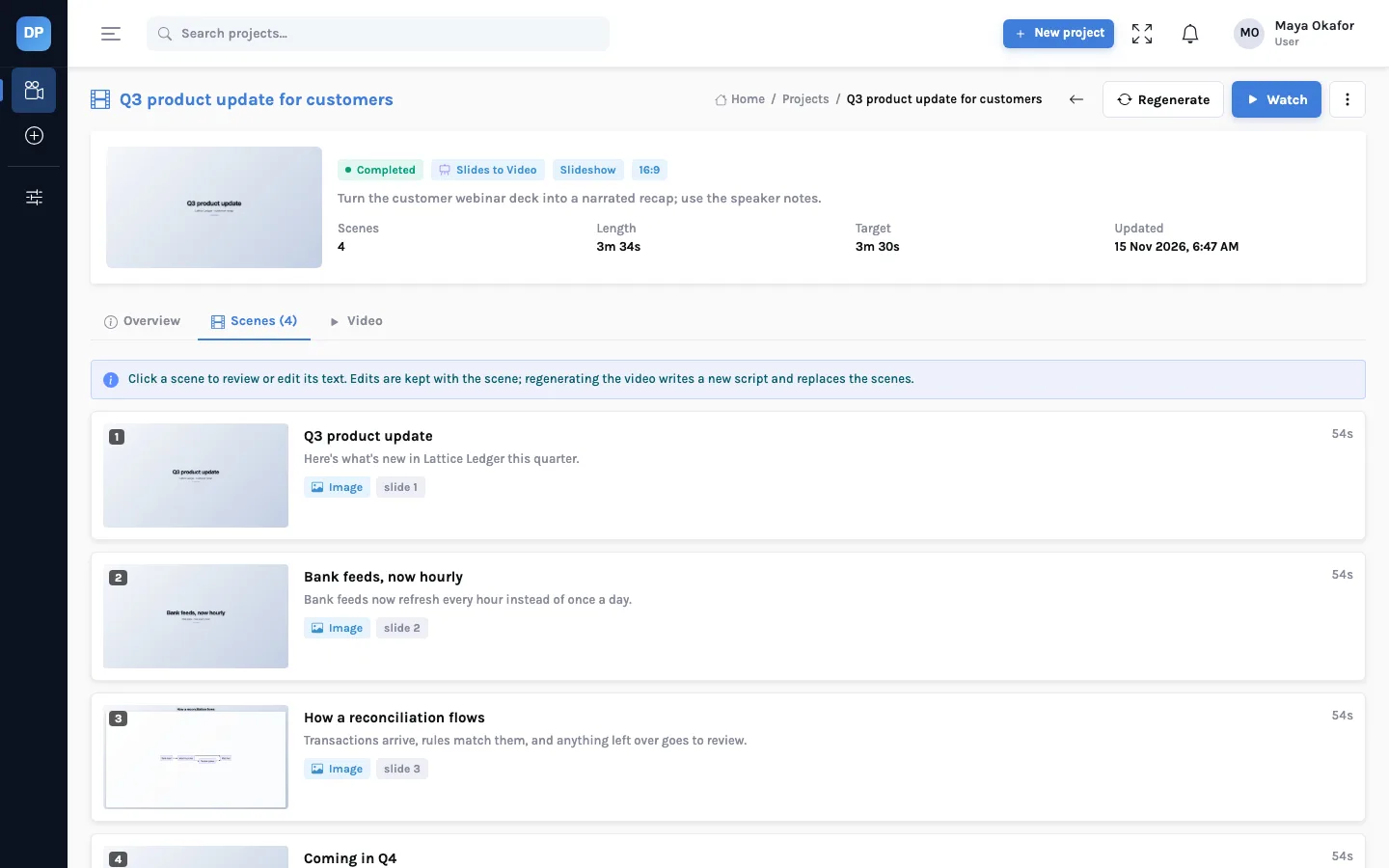
A generated video is a draft. The fastest way to turn it into something you'd publish is to review it the way DraftPlane built it: one scene at a time. This post explains what's in a scene, what you can change, and what to check before a video goes anywhere.
What a scene is
Every project is a list of scenes. Each one has a title, the narration text, a visual description (what the picture should show), a picture, the narration audio, a rendered clip, its duration and start time, and, for slides and documents, a reference back to the slide or page it came from. The final video is the clips in order behind a title card.
Review on the Scenes tab
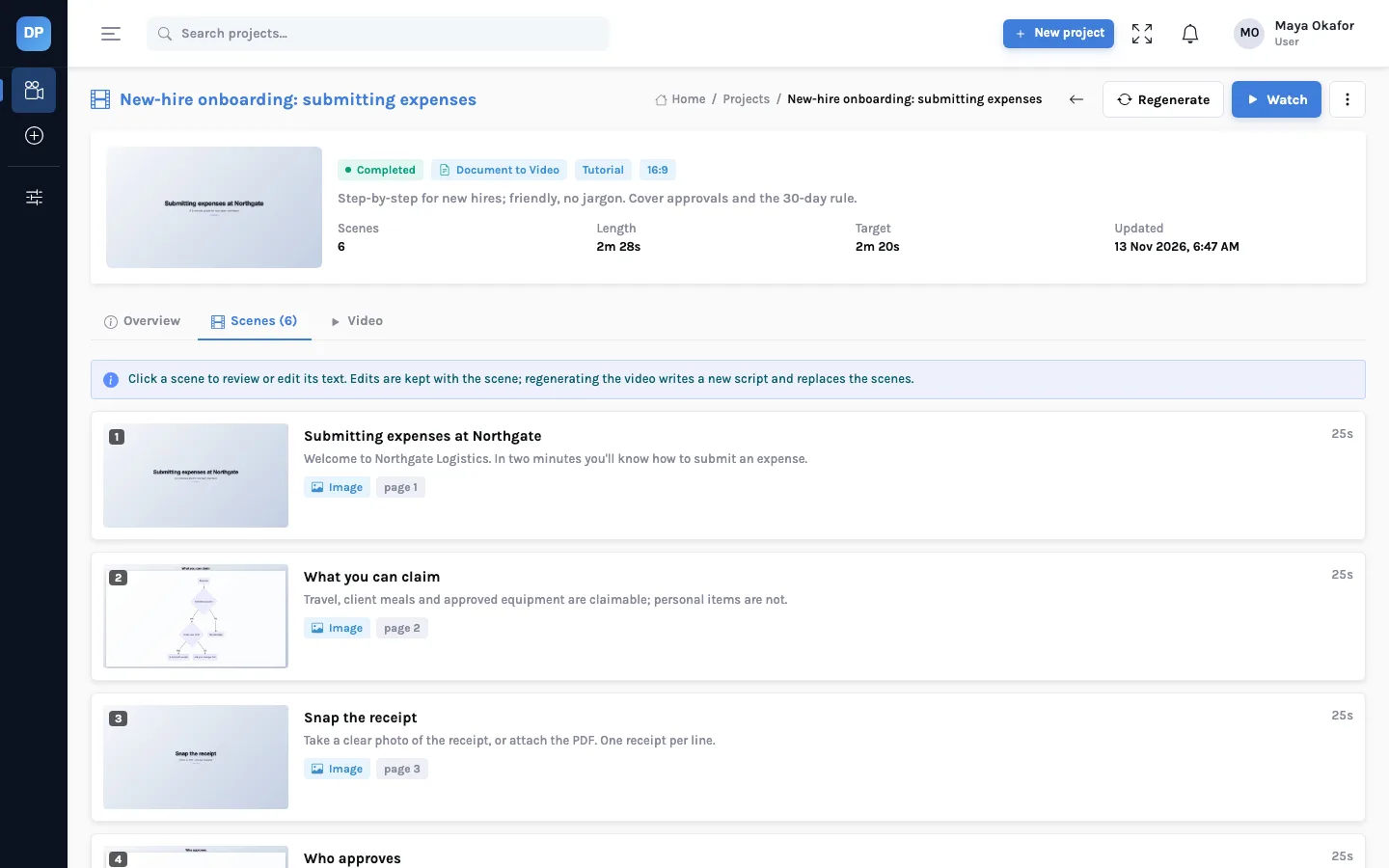
The Scenes tab lists every scene with its thumbnail, title, narration, duration and source reference. It's the quickest way to read the whole script without watching the video, and to spot a scene whose picture doesn't match what's being said.
The scene editor
Click a scene to open the scene editor. On the left are the scene's picture and the list of all scenes; on the right, its title, narration and visual description, with a word count and an estimate of how long the narration takes to read at a natural pace. Use Prev and Next to walk through the video, and Save to keep a change.
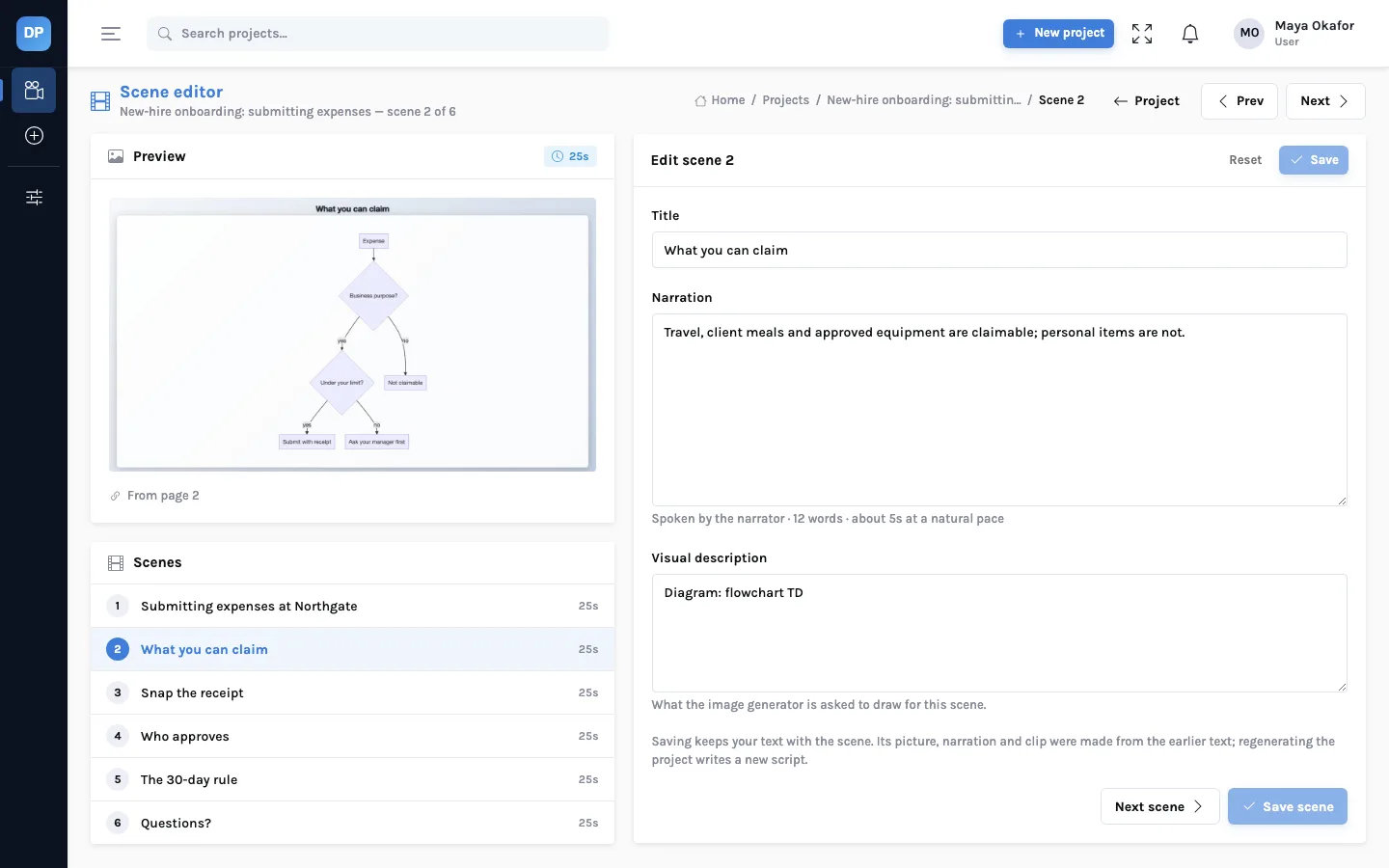
What an edit does today. Saving keeps your text with the scene. The picture, narration audio and clip were made from the earlier text and aren't re-rendered on their own. Regenerate runs the whole pipeline again, which writes a new script and replaces the scenes. So treat the editor as the place to review and correct the script, and the project's own settings (source, focus, style, length) as the way to steer the next generation.
A few details in the editor are worth knowing. The word count under the narration comes with a time estimate at about two and a half words a second, the same pace the script is fitted to, so you can see whether a rewrite makes the scene longer. An Unsaved badge appears as soon as you change something, Reset puts the saved text back, and moving to another scene with unsaved changes asks before discarding them. Under the preview there's a link to open the scene's picture full size, which is the easiest way to spot garbled text in a generated image.
Edit, or regenerate? How to decide
Because saving a scene doesn't re-render its narration, the MP4 keeps saying the old words until the project is regenerated, and regenerating writes a new script from the source. That makes the choice simple once you know it:
| Situation | Do this |
|---|---|
| Reviewing a draft with colleagues before deciding anything | Correct the script in the editor, so everyone reads the agreed wording |
| A fact is wrong because the source is wrong or unclear | Fix the source (replace the file, or update the page), then regenerate |
| A fact is right in the source but the model reworded it | Add the exact wording to the focus or instructions, then regenerate |
| Tone, pacing or the number of scenes is off | Change the style or target length in Edit project, then regenerate |
| One picture is wrong, everything else is fine | Regenerating redraws every picture; if the rest is good, note the issue and decide whether it's worth a new run |
Treat the edited script as the record of what the video should say, and the regenerated video as the thing you check against it.
Watch it once, end to end
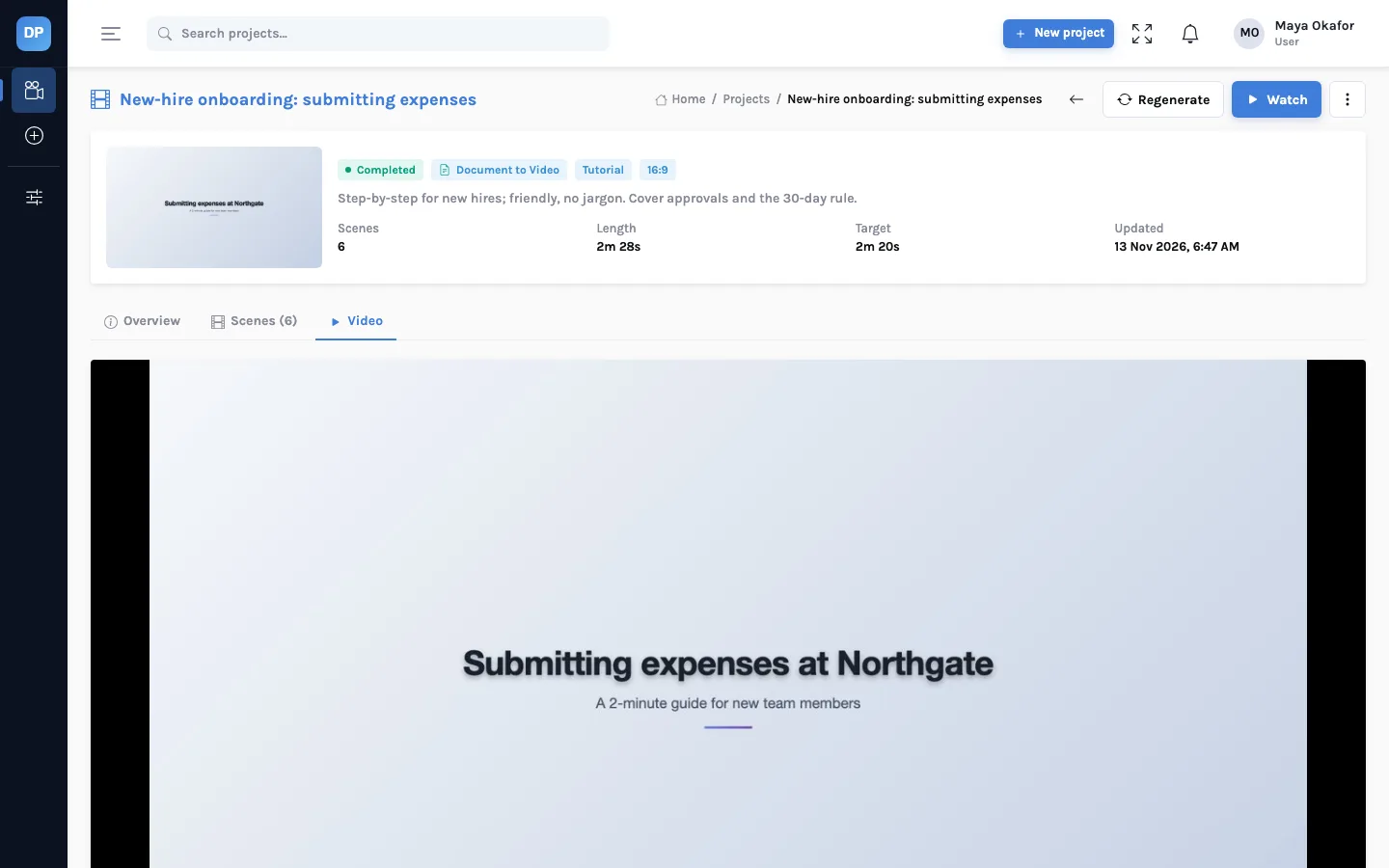
The Video tab plays the finished MP4 and has the download link. Watch it through at least once with the sound on: pacing problems (a scene that lingers, a sentence that runs into the next picture) are easy to hear and hard to read.
Two passes on the onboarding video
Maya's first pass on the expense-policy video was on the Scenes tab: she noticed that scene 4 said Finance "pays in the next run" while the policy says "with the next payroll", and fixed the wording in the editor so the script matched. Her second pass was on the Video tab, where she found the closing scene too short to read the help-desk address. She raised the project's target length by twenty seconds and regenerated.
A pre-publish checklist
- Facts and numbers. Check every claim, price, date and figure against the source. Language models can paraphrase a fact into a different fact.
- Pictures. Make sure each generated image fits its scene, contains no garbled text or logos, and is something you have the right to publish.
- Names and pronunciation. Listen for product and people's names read wrongly by the voice.
- Length. Compare the actual length on the overview with the target, and with where the video will be shown.
- Format. Landscape for YouTube and the web, portrait for short-form feeds, square for some social posts.
For steering the next generation, see choosing styles and providers and writing a brief that makes a good video.
Common fixes
| What you notice | What to change |
|---|---|
| Narration is rushed | Raise the target length, or cut the focus to fewer points |
| A picture doesn't match the scene | Rewrite the scene's visual description to say exactly what should be shown |
| Wording drifts from the source | Fix it in the editor, and add "use the source's wording" to the focus for next time |
| Too many scenes saying little | Shorten the target, or trim the source to the part that matters |
| Wrong tone | Try another style: tutorial and slideshow are calmer than promotional |
When a video finished with issues
A project marked Completed with issues has a video, but something along the way didn't work, and the warning at the top of the project page lists what. On the Scenes tab, each scene shows badges for what it has: Image, Audio and Clip. A scene without a Clip badge isn't in the video, usually because its picture or narration couldn't be made. Check that first, because a missing scene in a policy or product video can change its meaning without anyone noticing the gap.
Questions about reviewing
Who should review a video?
Whoever owns the source. The marketing lead for a product page, the policy owner for a policy, the presenter for a deck. They know which sentences have to be exact. Since projects belong to the person who created them, the usual way is to share the downloaded MP4 and the script for sign-off.
Can I change the voice for one scene?
Not from the scene editor today. The voice is set for the project, in Edit project, and applies to every scene when you regenerate.