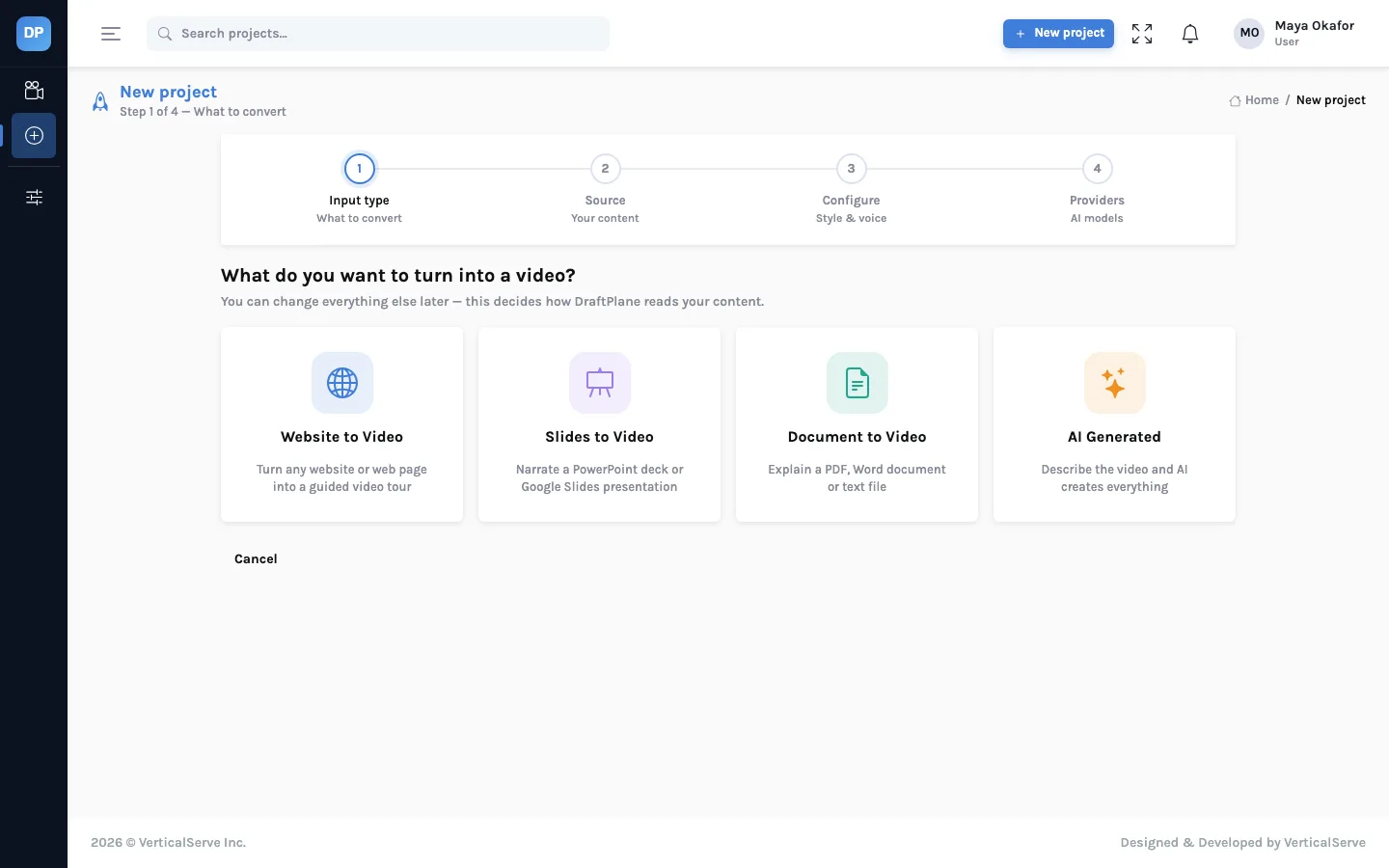
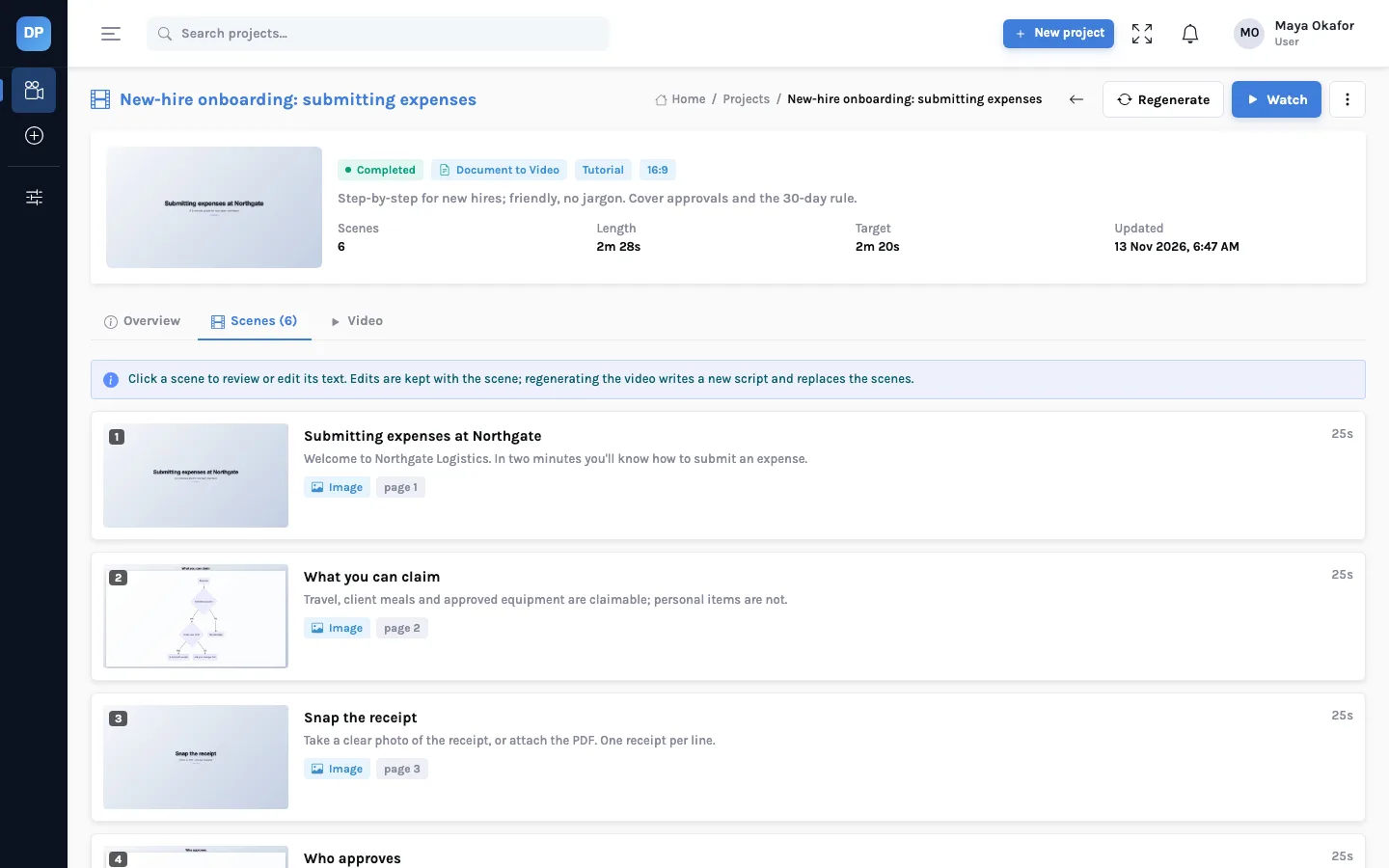
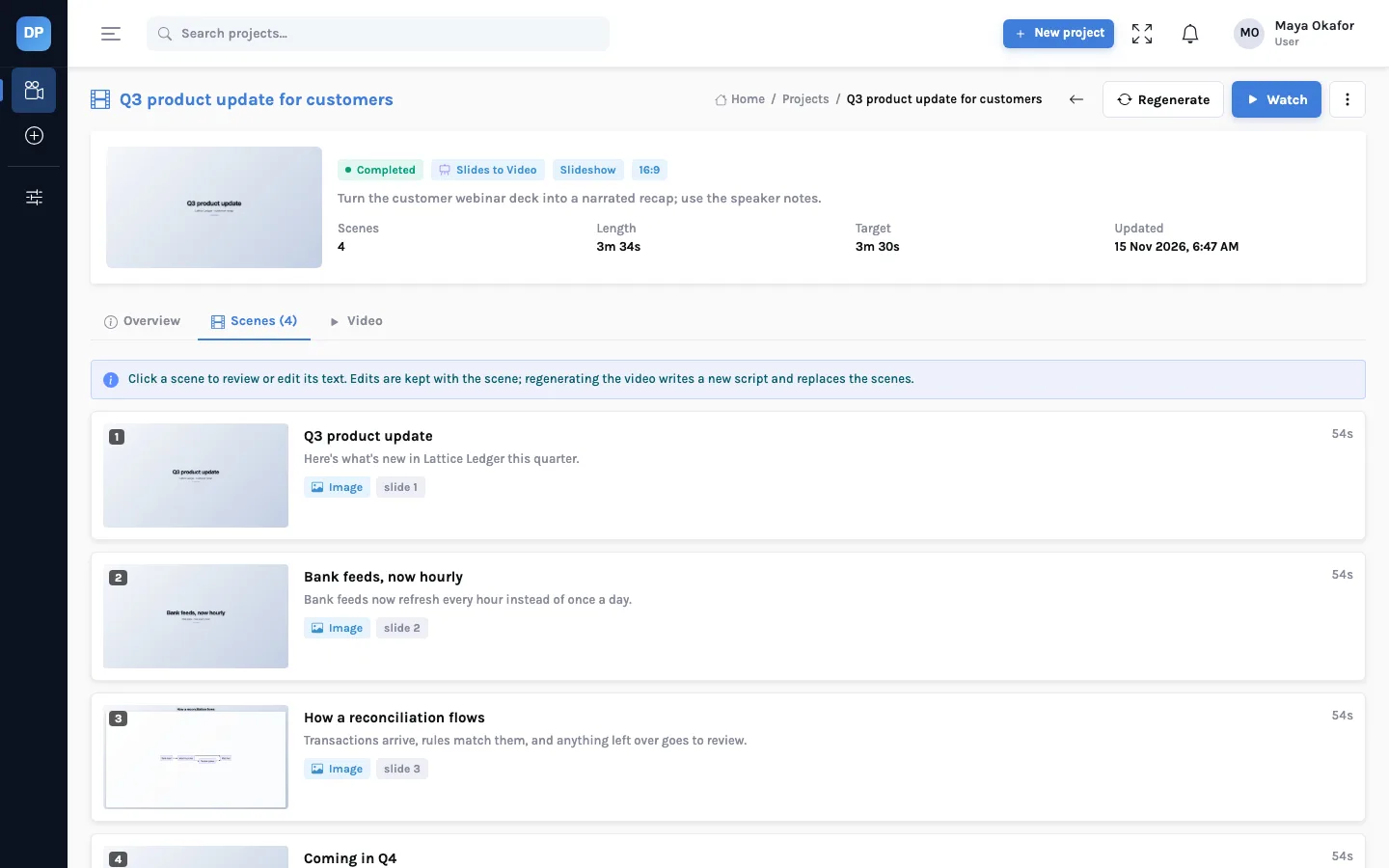
Three choices shape a DraftPlane video more than anything else: the style, the format (aspect ratio and length) and the providers that write, draw and speak. They're steps 3 and 4 of the New project wizard.
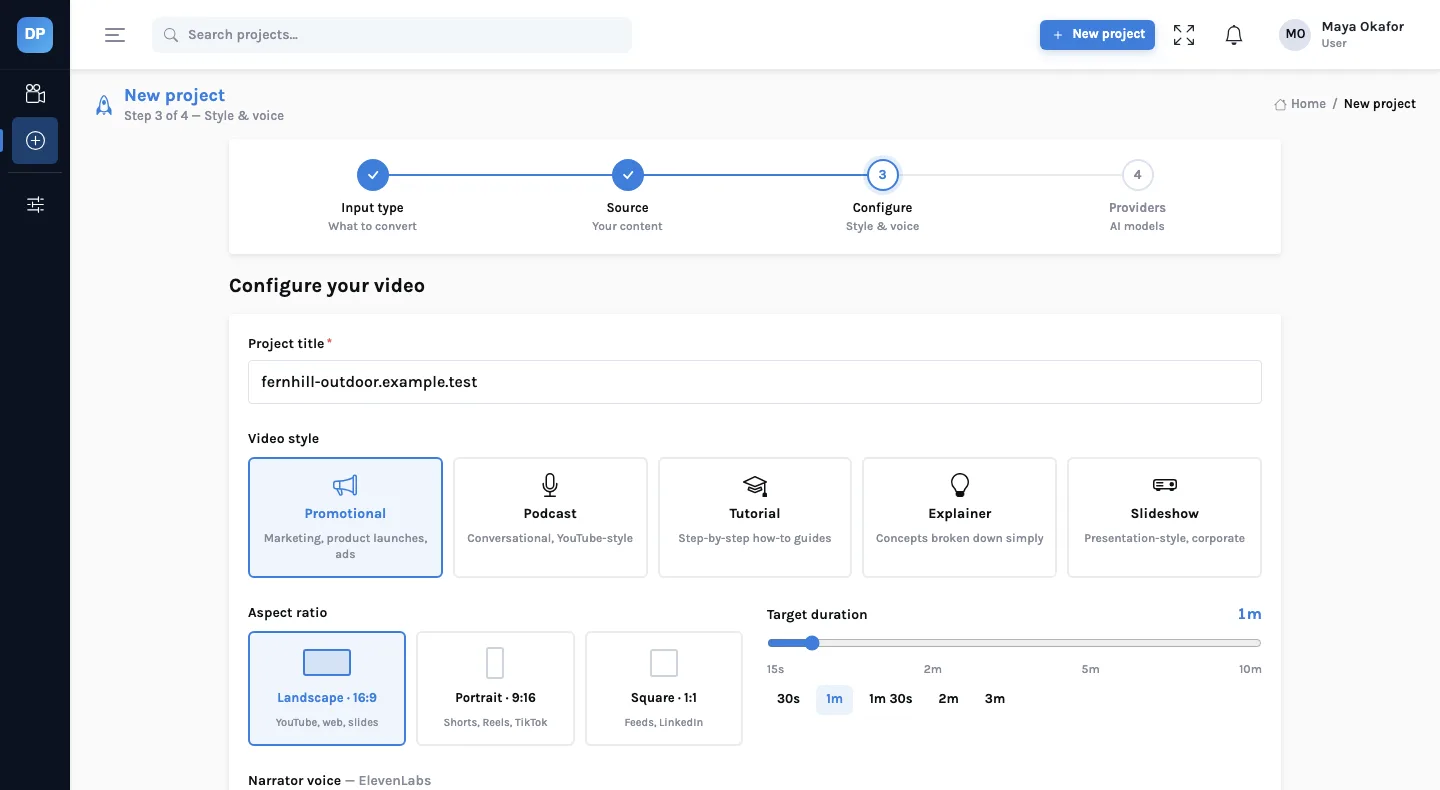
Five styles
The style is passed to the agents that plan the scenes, write the narration and describe the images, so it changes the tone of the script, how scenes are broken up, and the look asked of the image model.
| Style | Best for |
|---|---|
| Promotional | Product launches, landing pages, ads: short, energetic narration |
| Podcast | Conversational, longer pieces for YouTube |
| Tutorial | Step-by-step how-to guides and onboarding |
| Explainer | Breaking one concept down simply, often with diagrams |
| Slideshow | Presentation-style recaps with a clean, corporate feel |
What a style changes in practice
The style reaches the model in three places. When DraftPlane plans a video from a description, it gives the planner a style-specific instruction: promotional asks for benefits, features and a strong call to action; tutorial for clear steps, practical examples and common mistakes; explainer for a problem, solution, benefits shape; podcast for a conversational tone with several perspectives and takeaways; slideshow for concise points with supporting visuals. For every kind of source, the style is named again when the script is refined. And each generated picture is asked for in the style's look: tutorial pictures as clean instructional infographics, explainer pictures as flat illustrations, promotional pictures as vibrant, commercial-looking visuals.
That last point is easy to miss. If a tutorial's pictures look too much like diagrams for your taste, or a promotional video's pictures look too glossy for an internal audience, the style is the reason, and switching style changes the pictures as well as the words.
Format: aspect ratio and length
- Landscape 16:9 (rendered at 1920×1080) for YouTube, websites and slides.
- Portrait 9:16 (1080×1920) for Shorts, Reels and TikTok.
- Square 1:1 (1080×1080) for feeds such as LinkedIn.
The target duration runs from 15 seconds to 10 minutes, with quick picks for 30 seconds to 3 minutes. It's a target for the script, at roughly 150 spoken words a minute; the actual length depends on the narration, and the project overview shows both side by side.
Pictures fill the frame. Generated pictures are requested in the shape of the video (wide, tall or square). Slides and page screenshots, though, are captured landscape at 1920×1080, and every picture is resized to fill the frame rather than letterboxed. So a slides or website-screenshot project in portrait or square will show squeezed pictures. Keep those projects in 16:9, and use portrait for documents and descriptions, where the pictures are drawn to fit.
Providers
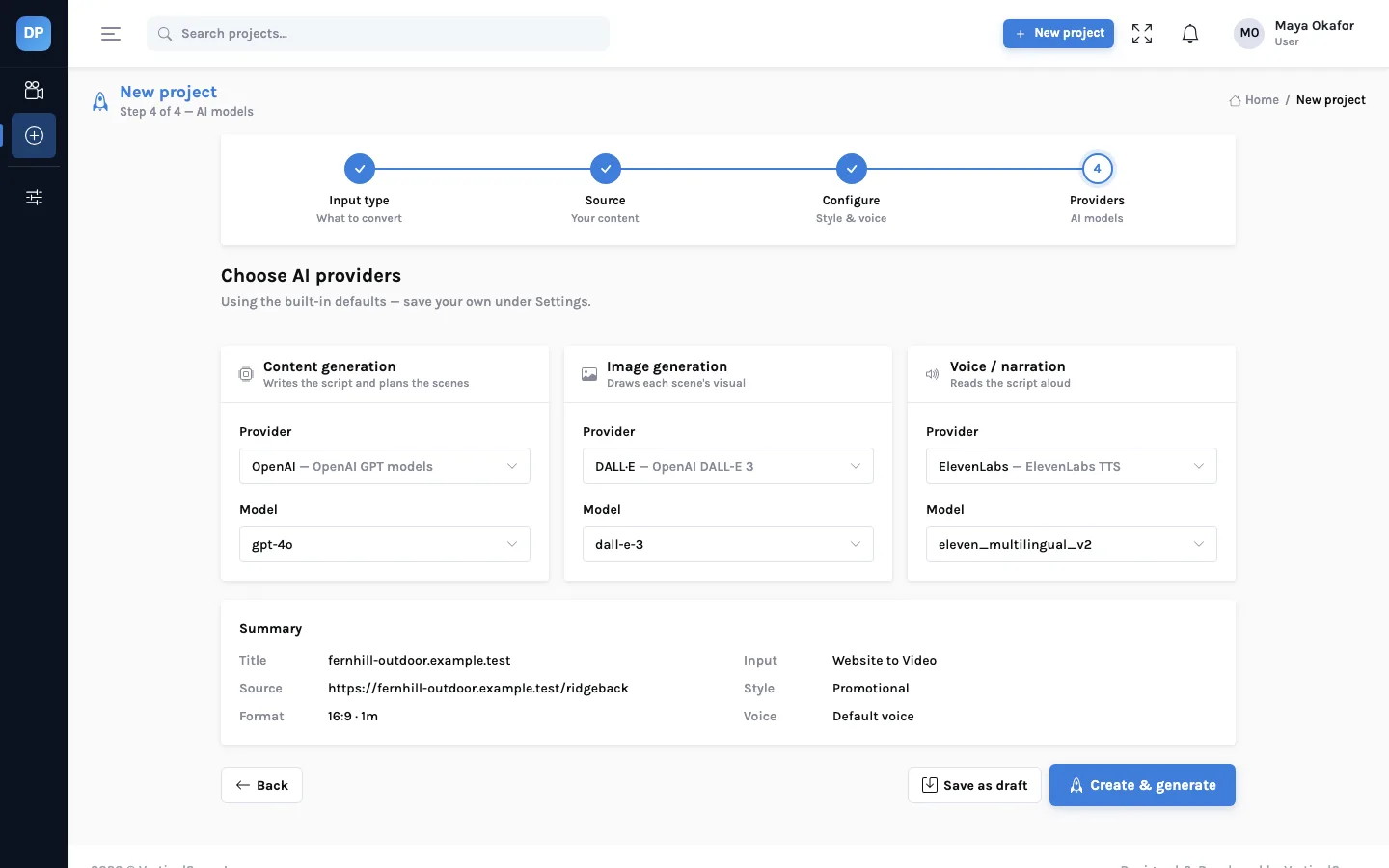
| Job | Providers | Models offered |
|---|---|---|
| Writing (plan, script) | OpenAI · Anthropic Claude · Perplexity | GPT-4o family · Claude Sonnet, Opus, Haiku · Sonar |
| Images | OpenAI DALL·E · Google Imagen · Black Forest Labs Flux · Replicate | DALL·E 3 · Imagen 3 · Flux Pro / Dev · SDXL, Stable Diffusion |
| Voice | ElevenLabs · OpenAI · Google Cloud | Multilingual v2, Turbo · TTS-1, TTS-1 HD · Standard, Neural2, Studio |
A provider only works if its key is configured on the DraftPlane server; the voice picker lists the voices that provider offers. Some practical notes:
- Slides rarely need an image model, and nor do websites read with listed pages or a sign-in. Scenes that already have a picture (a rendered slide or a page screenshot) skip image generation, so the image choice matters most for documents and descriptions.
- Diagrams aren't drawn by the image model. Scenes planned as diagrams are rendered from Mermaid code, which keeps labels and arrows exact.
- Voice is the part people notice. Listen to a couple of voices with your own product names before settling on one for a series.
Settings and per-project choices
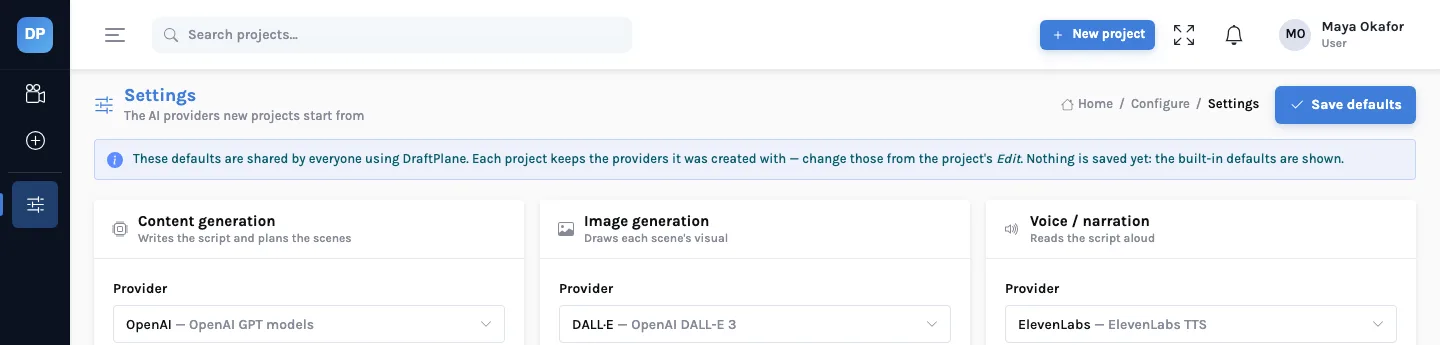
Settings holds the defaults that every new project starts from, shared by everyone in your DraftPlane. Each project keeps the providers it was created with, and you can change them from the project's Edit dialog. Until Settings are saved, the built-in defaults are used.
One style per channel
Maya's made-up company settled on a simple rule: promotional, 16:9, about a minute for product pages; tutorial, 16:9, two to three minutes for internal training; slideshow for webinar recaps. They saved Claude for writing and one ElevenLabs voice as the defaults, so every new project starts the same way, and only change the voice for the founder's podcast-style videos.
Your data and the providers. Source text, prompts and generated content are sent to the providers you pick. Review each provider's terms and your own policies before converting confidential material.
A quick way to choose
| If the video is… | Style | Format and length |
|---|---|---|
| A product page or launch | Promotional | 16:9 for the page and YouTube; a 9:16 copy for short-form; 30–60 s |
| Internal training or onboarding | Tutorial | 16:9; 2–3 minutes, one process per video |
| One idea, explained | Explainer | 16:9 or 1:1; 60–90 s |
| A deck or webinar recap | Slideshow | 16:9; about 15–20 s per slide |
| A conversation or Q&A | Podcast | 16:9; several minutes |
These are starting points, not rules. The quickest way to find your house style is to generate the same short source in two styles and compare them side by side.
Before you save the defaults
- Check which keys exist on your server. The pickers list every provider DraftPlane supports, but a provider without a key configured on the server will fail when the run reaches its step.
- Pick the voice with your own words. Generate a short test project that says your product and people's names, and listen to it before making that voice the default.
- Decide where the model choice matters. The writing model shapes every video; the image model matters mostly for documents and descriptions; slide and screenshot projects barely use it.
- Check your data rules for each provider you enable, since source text goes to the writing model and scene descriptions go to the image model.
Questions about providers
Can one project mix providers?
Yes. Writing, images and voice are chosen separately, so a project can write with Claude, draw with Imagen and speak with ElevenLabs.
If I change Settings, do existing projects change?
No. Settings only pre-fill new projects. An existing project keeps the providers it was created with until you change them in its Edit dialog and regenerate.
Why did a slides project ignore my image choice?
Because it didn't need it: every scene already had a picture, the rendered slide. The image model is used only for scenes without one, which for a deck usually means slide rendering failed.