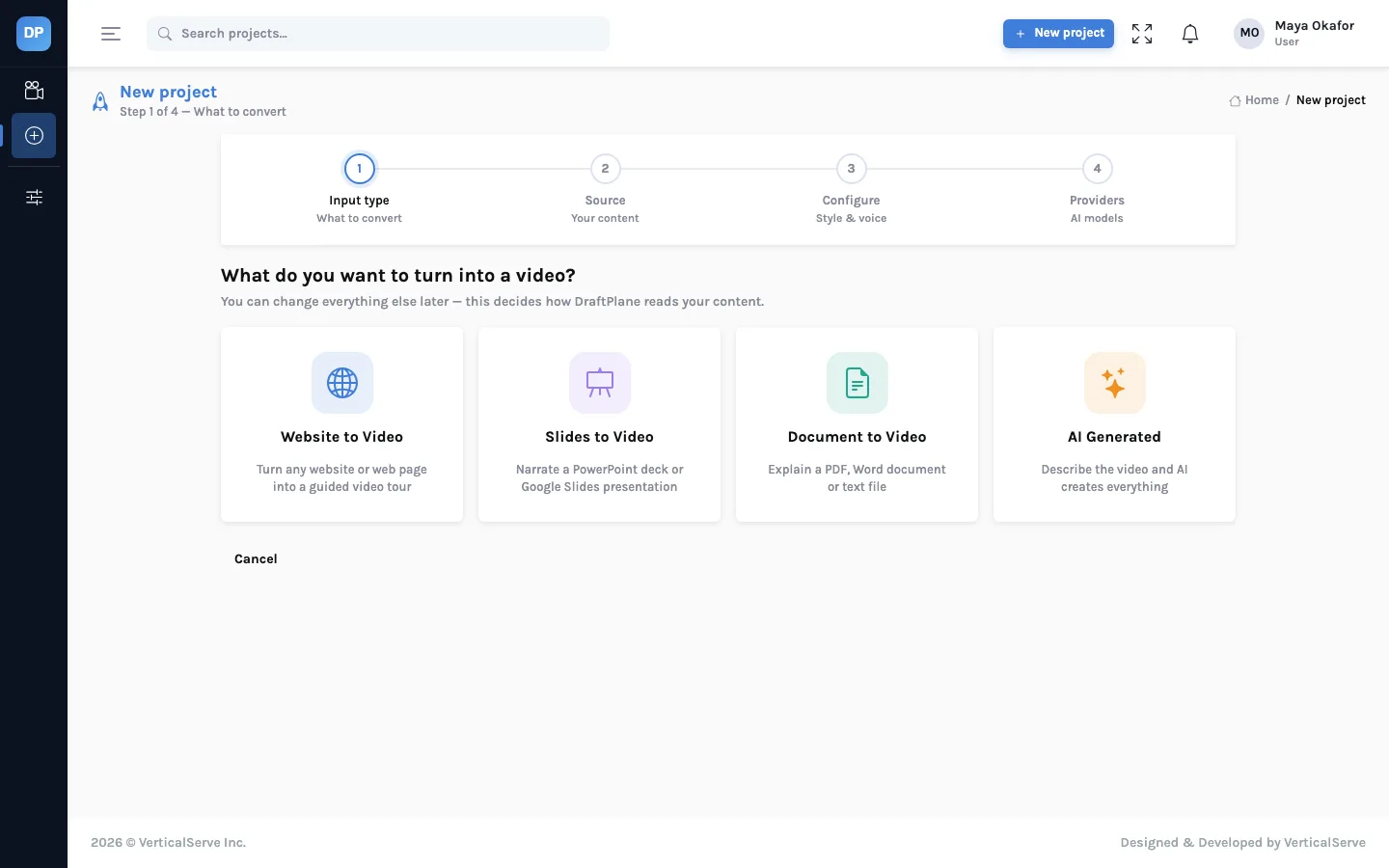
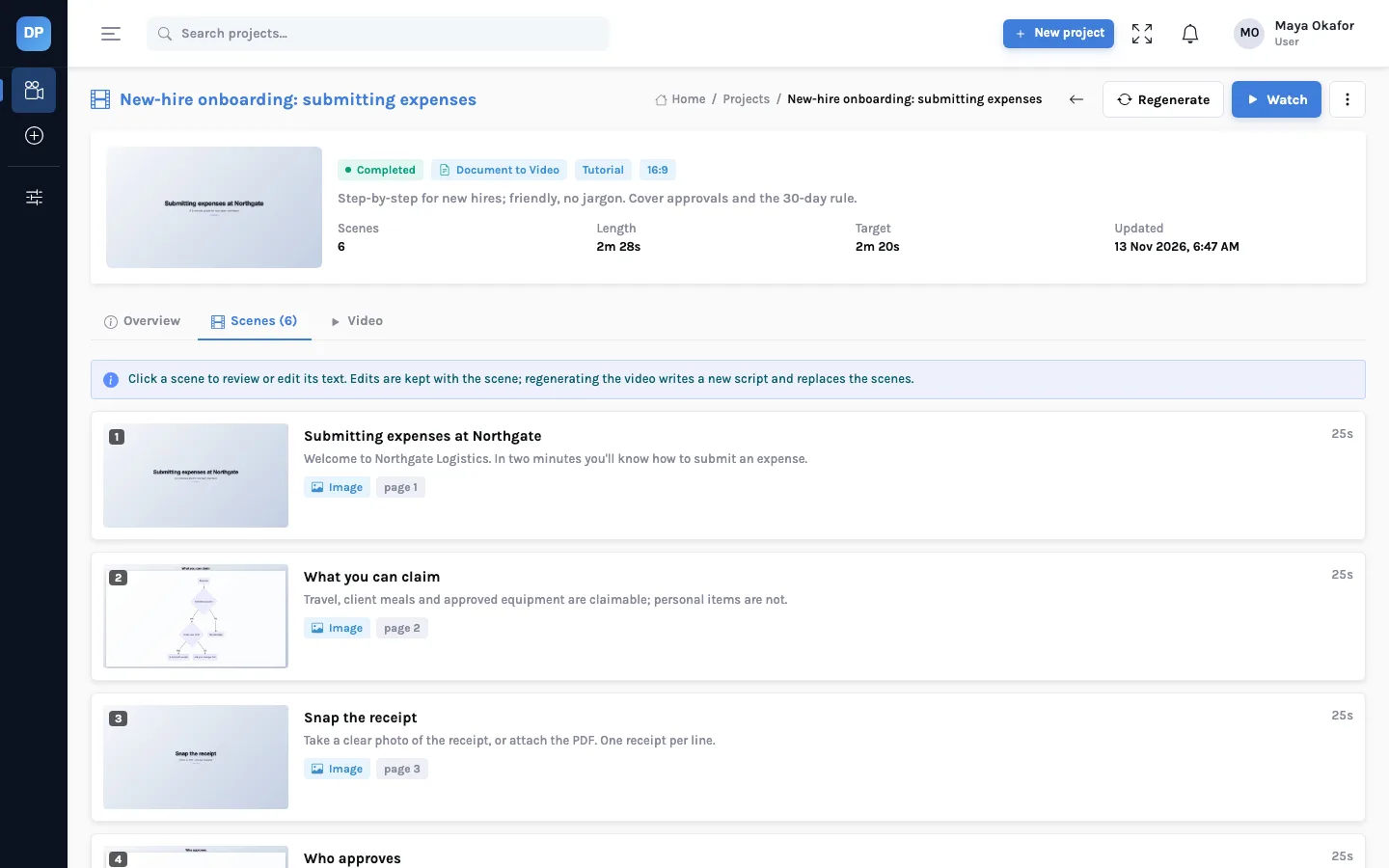
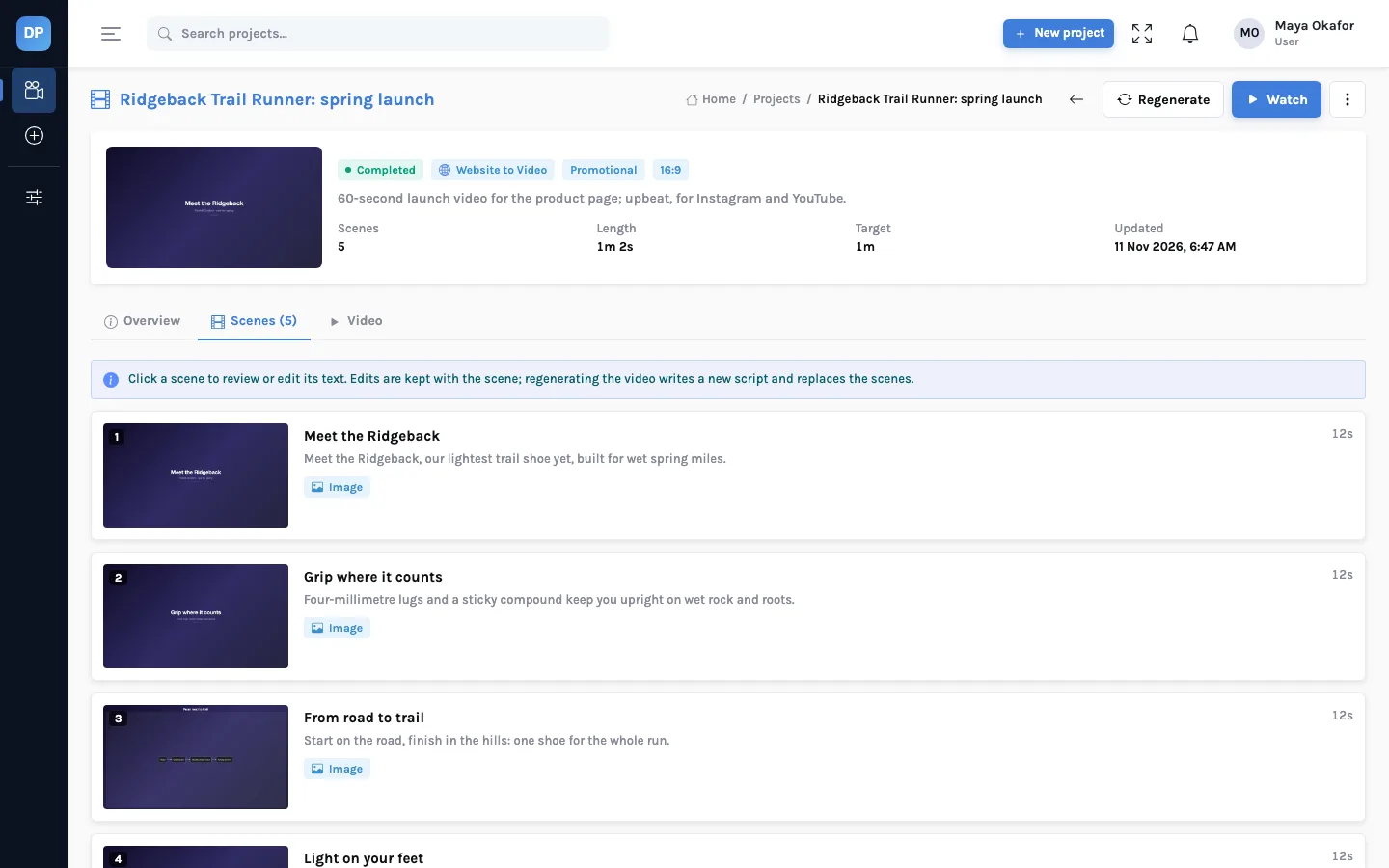
Lattice Ledger's quarterly update
Lattice Ledger (made up) makes accounting software and runs a customer webinar every quarter. About a third of customers watch live; the rest get a link to a one-hour recording that few open. Maya, in product marketing, wants a three-to-four-minute narrated recap of the deck that customers will actually watch. The company, product and deck here are all fictional.
1. Upload the deck
Maya starts a Slides to Video project and uploads the PowerPoint file. (A Google Slides link works too, read through Google's Slides API, if the server has been connected to Google.) She adds a focus line, "Turn the customer webinar deck into a narrated recap; use the speaker notes", chooses the Slideshow style and a target of three and a half minutes.
2. What DraftPlane does with slides
For a PowerPoint file, DraftPlane does two things in parallel. It renders every slide to an image (by converting the deck to PDF and each page to a picture) so the real slide, with your design and charts, is what's on screen. And it reads each slide's title, body text and speaker notes, which the language model turns into narration in the chosen style. Because the scenes already have pictures, no image model is used for them; if slide rendering fails, DraftPlane falls back to generated images and notes the warning on the project.
3. Speaker notes are the script
The single biggest lever on a slides video is the speaker notes. A slide that says "Bank feeds: hourly" gives the model four words to work with; notes that say "Bank feeds used to refresh once a day. From this release they refresh every hour, so reconciliations are rarely more than an hour behind" give it the actual point. Before uploading, Maya spends twenty minutes filling in the notes for the slides that had none.
What DraftPlane reads from a slide, and what it doesn't
From a PowerPoint file it reads the text in each slide's text boxes and placeholders (the title, the body) and the speaker notes. Text that lives elsewhere, such as the numbers inside a chart, the cells of a table or the labels in a diagram, shows up in the slide's picture but isn't read as text. If a chart's figures matter to the story, say them in the notes. The model is asked for two to four sentences of presenter-style narration per slide, written to explain what's on screen, and the refinement step leaves narration alone when it's already close to the target length, so well-written notes tend to survive with their wording intact.
Keep slides and narration in step
Slide pictures are matched to scenes in order: the first scene gets the first slide's picture, the second gets the second, and so on. The model is allowed to merge a slide with very little on it into its neighbour, and if it does, the pictures after that point can end up one slide out of step with the narration. Two habits prevent it: remove thin slides (section dividers, a lone image) yourself before uploading, and on review check that each scene's Slide N label matches the picture beside it.
PowerPoint file or Google Slides link? An uploaded .pptx is rendered slide by slide, so your real slides are on screen. A Google Slides link is read for its text and notes only: there are no slide pictures, so the image model draws every scene. If you want the deck's own design in the video, download it from Google Slides as a .pptx and upload that.
4. Review and send
On the Scenes tab, each scene shows its slide number, so checking the narration against the deck is quick. Product details, dates and anything about upcoming releases get the closest read: a recap that promises a feature for the wrong quarter is worse than no recap. Then she downloads the MP4 and adds it to the customer email and the help centre.
Forward-looking statements. If a deck mentions plans or roadmap items, the narration will too. Keep the same caveats your webinar had, and check them in the script before the video goes out.
Tips for slide decks
- One idea per slide makes one clear scene. Dense slides make long scenes.
- Remove housekeeping slides (agenda, Q&A, "thank you") you don't want narrated.
- Slideshow or tutorial style suits decks: clean, steady narration; promotional is usually too energetic for a recap.
- Mind the length. At roughly 150 words a minute, a 12-slide deck at 3 minutes leaves about 35 words per slide.
Who else can use a deck video
- Sales: a three-minute walk-through of the pitch deck to send after a first meeting, so the champion can share it internally.
- Training: a course deck turned into short lessons, one project per module.
- Internal comms: the all-hands slides as a recap for the people who couldn't attend, or who are in another time zone.
- Customer success: the quarterly business review deck as a recap for the customer's wider team.
In every case the same rule holds: the better the speaker notes, the better the narration. If a deck has no notes, writing two or three sentences per slide is the most valuable twenty minutes you'll spend on the video.
A checklist before you upload
- Delete the slides you don't want narrated rather than hiding them: DraftPlane reads every slide in the file.
- Write notes for every slide that stays, two or three sentences each, including any figures from charts.
- Check the fonts. Slides are rendered on the DraftPlane server, where a font that isn't installed may be substituted. Glance at the slide pictures on the Scenes tab after the first run.
- Keep it landscape. Slides are captured at 16:9 and resized to fill the frame, so a portrait or square project would squeeze them.
- Set the length from the slide count, not the other way round.
What if the notes are already a word-for-word script?
Then aim the target length at what those notes take to read, at roughly 150 words a minute. When the draft lands close to the target, the refinement step keeps it, and the narration stays near your wording. The model still writes the first draft from your notes, so read it against them before sending.
Related: turning a policy document into an onboarding video.