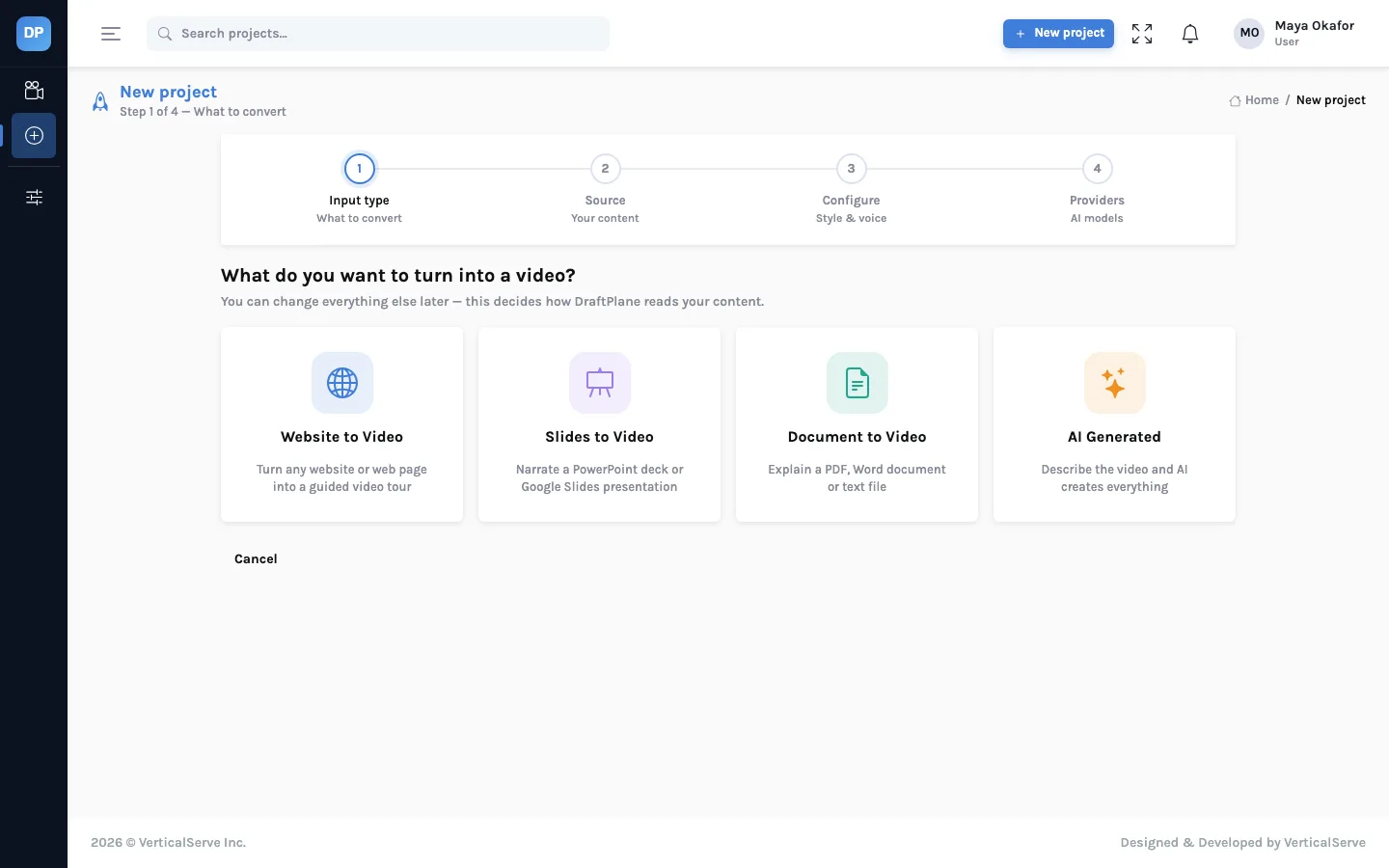
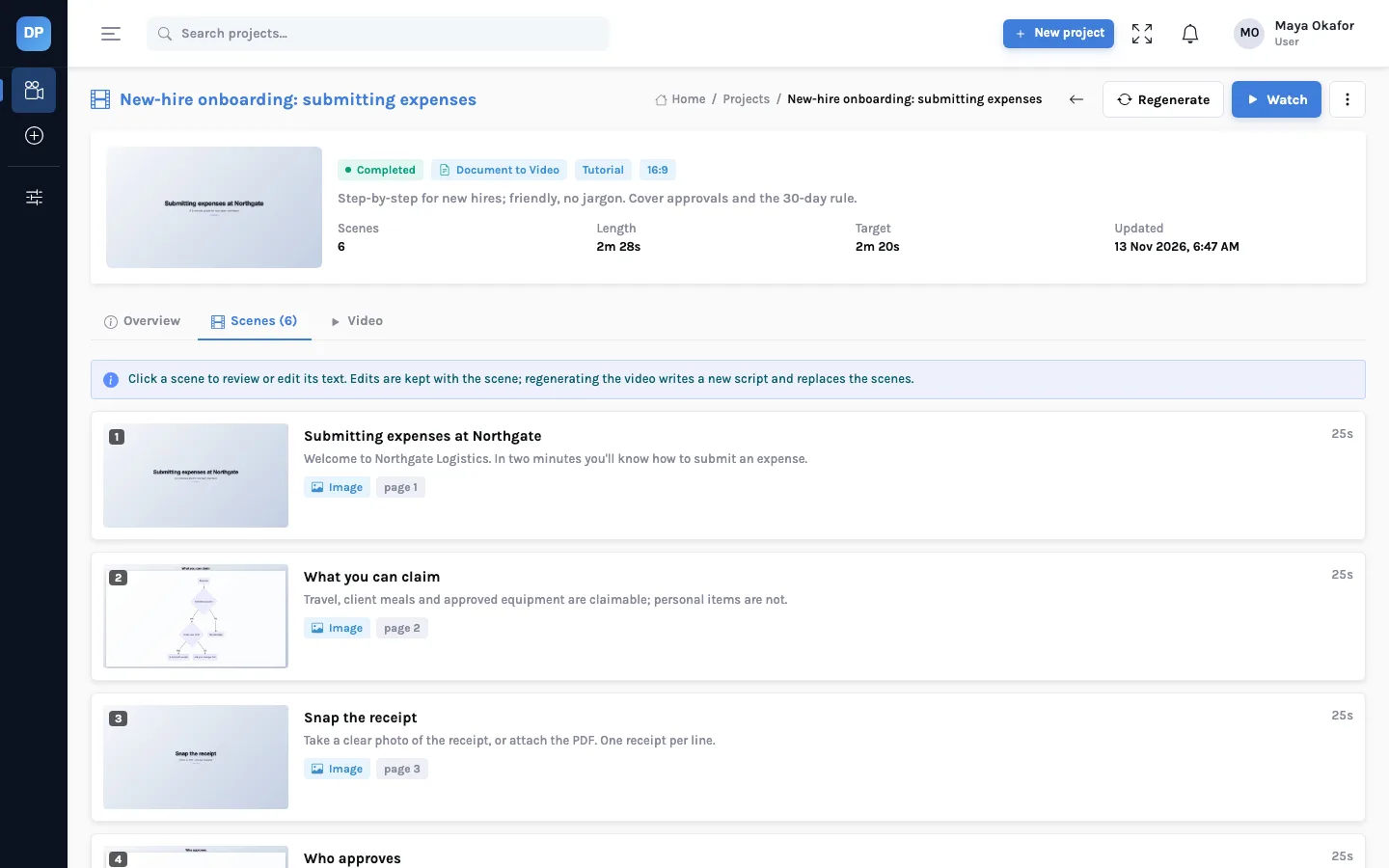
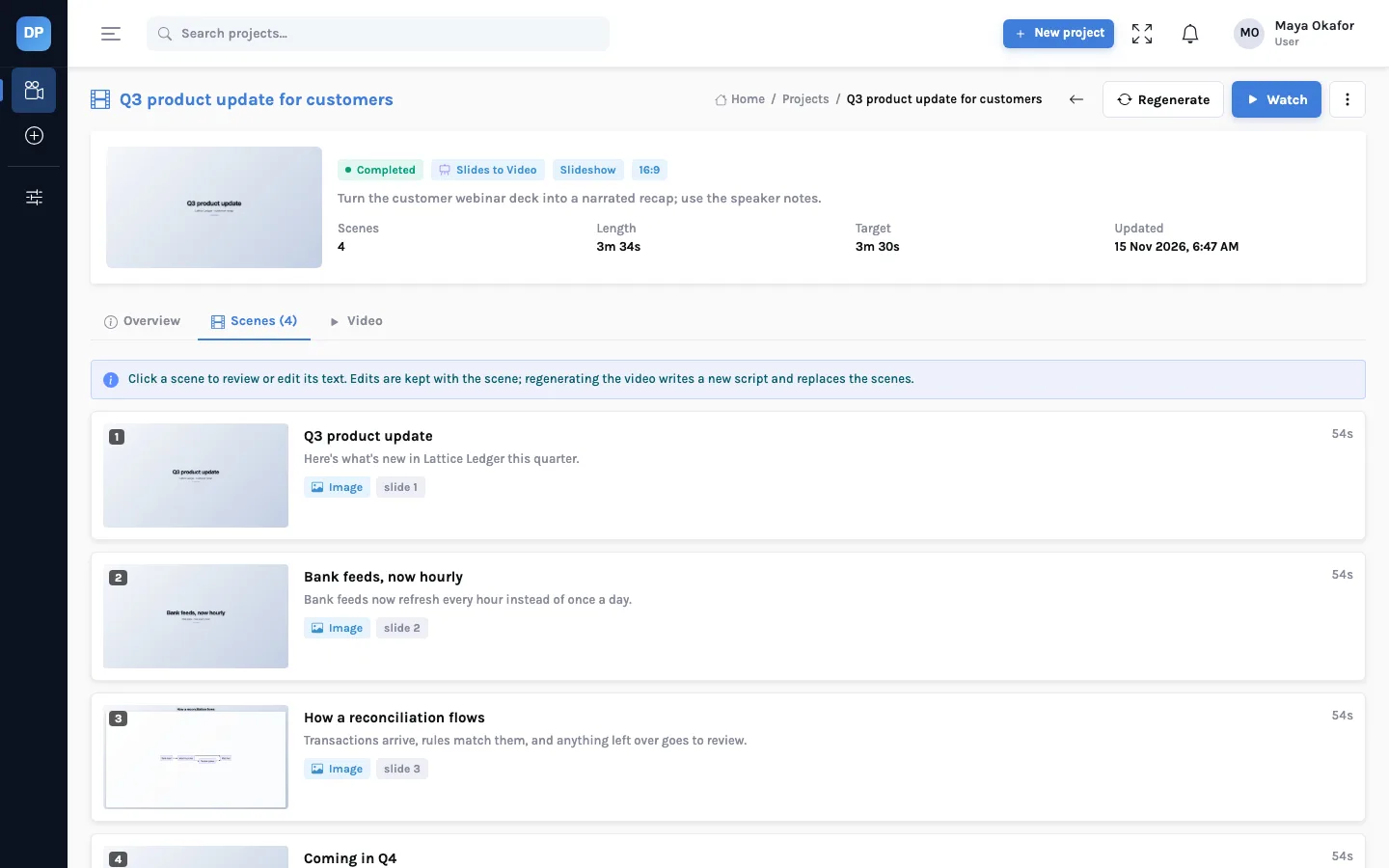
When you press Create & generate, DraftPlane hands the project to a pipeline of small agents, each responsible for one job. Knowing what each one does makes it much easier to get good results, and to tell what went wrong when something does.
1. Read the source
The first agent depends on what you're converting:
- Website: by default it extracts the readable text of the URL you gave, and the scenes' pictures are generated later. If you list specific pages or provide a sign-in, it opens the site in a headless browser instead, visits your pages (or, after signing in, same-site links up to ten pages), skips sign-out and mail links, and takes a screenshot of each page to use as the scenes' pictures.
- Slides: a PowerPoint file is rendered slide by slide to images, and each slide's text and speaker notes are read; a Google Slides link is read through the Slides API.
- Document: text is extracted from a PDF (page by page), a Word file (keeping headings) or a text file, and the language model breaks it into four to ten logical scenes.
- Description: there's nothing to read, so the language model plans the scenes from your brief and the chosen style, deciding for each one whether it needs a picture or a diagram.
2. Refine the script
Next, the language model polishes every scene's narration for the style you chose (promotional, podcast, tutorial, explainer or slideshow) and for the target length. It works from a speaking rate of about 150 words a minute, so a 60-second target means roughly 150 words of narration across all scenes.
3 and 4. Diagrams and images
Scenes the planner marked as diagrams (processes, workflows, timelines, comparisons; only description projects plan diagrams) carry Mermaid code, which is rendered to an image. Every other scene needs a picture: if it already has one (a website screenshot or a rendered slide), DraftPlane keeps it and skips image generation; otherwise the image provider draws it from the scene's visual description, at the size that fits the aspect ratio.
5 and 6. Narration and clips
The text-to-speech provider reads each scene's narration in the project's voice. Then each scene becomes a clip: its picture, held for exactly as long as its narration, with a slow zoom in, zoom out or pan (rotating from scene to scene) so a still image doesn't feel static. Clips render at 1920×1080 for landscape, 1080×1920 for portrait and 1080×1080 for square.
7 and 8. Merge, publish, save
A title card is added at the start and the clips are joined into one MP4. If a YouTube account has been connected on the server, the video is uploaded with its title and description; if not, that step is skipped. Finally the scenes, files, duration and status are saved to the project, and it shows as Completed (or Completed with errors if a scene had a problem along the way).
Watching it run
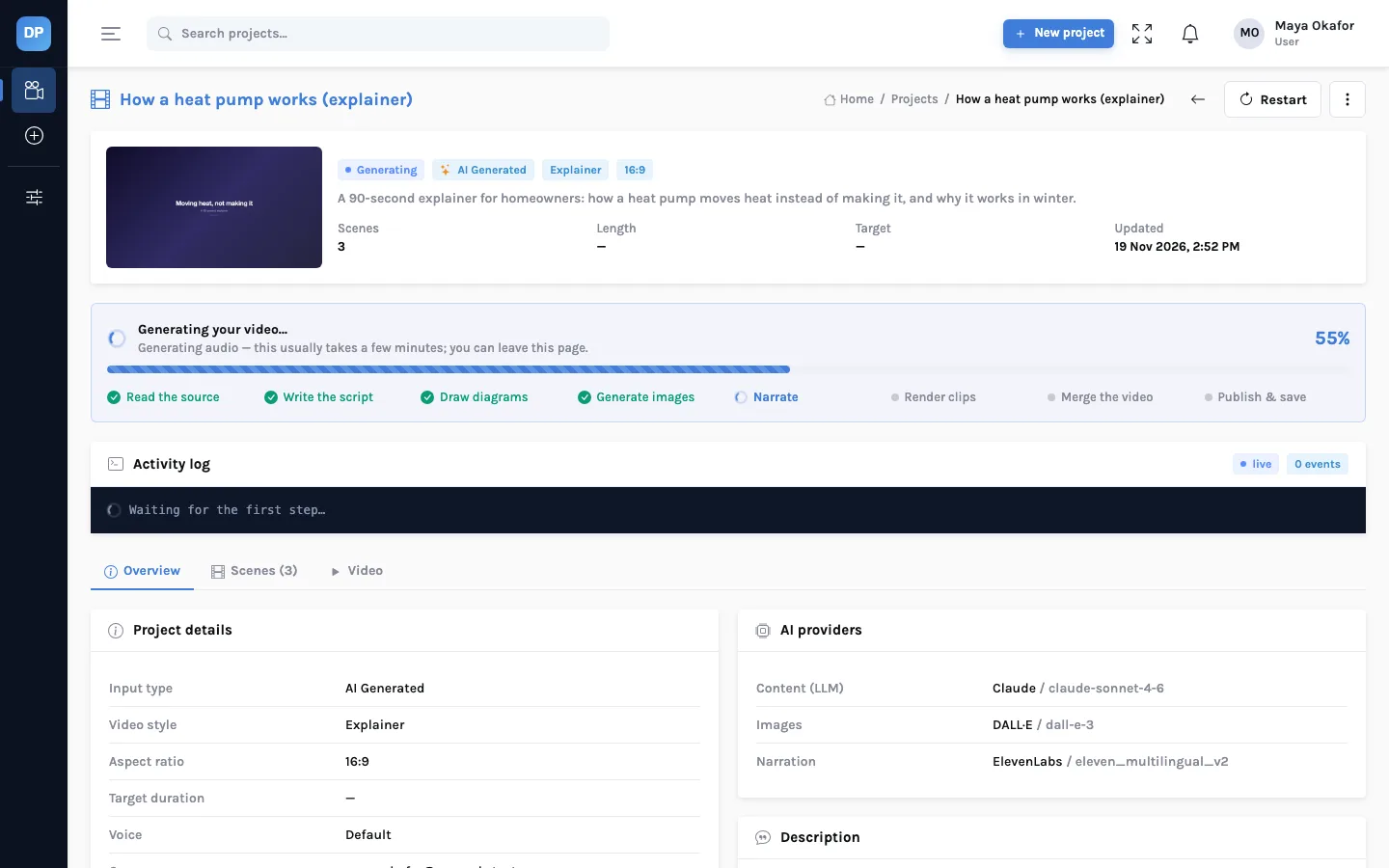
While a project generates, its page shows a progress bar, the step it's on, a checklist of steps and a live activity log, and the project list updates its card. You can leave the page; generation carries on in the background.
If a run stalls. If a run is interrupted, the project stays marked as processing. The project page flags a run with no progress for 20 minutes and offers Restart, which starts the run again.
A 90-second heat-pump explainer
A made-up home-energy company wrote a two-sentence brief: how a heat pump moves heat instead of making it, and why it still works in winter. The planner made three scenes: a title, a diagram of the refrigerant loop, and a closing point about cold air. Because the loop was marked as a diagram, it became a Mermaid flowchart rather than an AI picture, which kept the arrows and labels exact.
When a step goes wrong
The pipeline is built to finish a video where it can rather than stop at the first problem. That's useful, but it means a video can be Completed with issues and still look finished at a glance. What each step does when it hits trouble:
| If this fails… | DraftPlane… | What you'll notice |
|---|---|---|
| Reading the source | Has nothing to build scenes from | No scenes and no video, with the reason (a page that couldn't be read, a missing file) in the warning |
| Rendering slides to pictures | Falls back to generated images for those scenes | Pictures that aren't your slides |
| Refining the script | Keeps the first-draft narration | A warning; narration may run long or short of the target |
| Drawing a diagram | Asks the image model for a picture instead | An illustration where you expected labelled boxes |
| Generating one image, or one narration | Leaves that scene out of the video | A video shorter than the Scenes tab suggests |
So when a run ends with issues, read the warning on the project page first, then compare the number of scenes on the Scenes tab with what you see in the video. A scene with no Clip badge on the Scenes tab wasn't rendered.
How much of the source is read
The language model doesn't see an unlimited amount of text. For a website, a deck or a document, roughly the first 8,000 characters of extracted text are sent when the scenes are planned; for a deck that includes every slide's title, body and notes. In practice that's a focused web page, a deck of a few dozen sparse slides, or three to four dense pages of a document. Content beyond that isn't in the script, so trim the source to what matters instead of hoping the model will find it.
The refinement step also checks the draft against your target. If the first-draft narration is already within about 30% of the target length, it is left as it is; otherwise the model rewrites it to fit, at about 150 words a minute. With no target set, refinement aims at one minute.
Reading the activity log
The log is the most useful thing on the page while a run is going. It names each scene as it's drawn, narrated and rendered, says which provider is being used, and reports skips and failures in plain words: "Scene 3 already has image, skipping" is normal for slides and screenshots; "Mermaid render failed for scene 2, will use AI image instead" tells you why a diagram came out as a picture. When a run ends, the page keeps the log as Last run until the API process restarts.
Questions about runs
Can I edit the project while it generates?
No. Editing the project and its scenes is paused until the run finishes, because the run replaces the scenes when it saves.
Does Regenerate keep anything from the last run?
No. It reads the source again, writes a new script and replaces every scene, picture, narration and the video. Scene edits from the editor are not carried over.
What does Restart do differently?
Restart is for a run that has stopped moving. It forces a new run even though the project is still marked as generating, so use it only when the page says the run looks stuck; a run that is still working would race the new one.
Next: reviewing and editing scenes.